Lot Orientation Selection in Rheia Verify: A Smarter, Faster Way to Work in the Field
Phoenix, March 19, 2025 — At Rheia, we’re always listening to your feedback—On the 1st April 2025, Our Rheia Verify airflow balancing app will include Lot Orientation Selection—giving you the ability to set and adjust lot orientation right from the app.
No more toggling between platforms or relying on incomplete information. With a simple drop-down menu and a new “Not Specified” option, technicians can now input or update orientation details on the spot. Plus, clearer HVAC system identification within the app means less guesswork and more efficiency—especially in homes with multiple systems.
They are small changes with a big impact, helping ensure better accuracy, smoother airflow balancing, and a more streamlined process across every jobsite.
How to set lot orientation
The lot orienation is an important parameter for balancing a duct system. It is important the correct orientation is used when setting balancing dampers to match the airflow targets. Rheia Manage and Verify allow multiply ways to set this value, accomodating lot set-up before orientation is known and setting in the field.
Orientation “Not Specified” Option
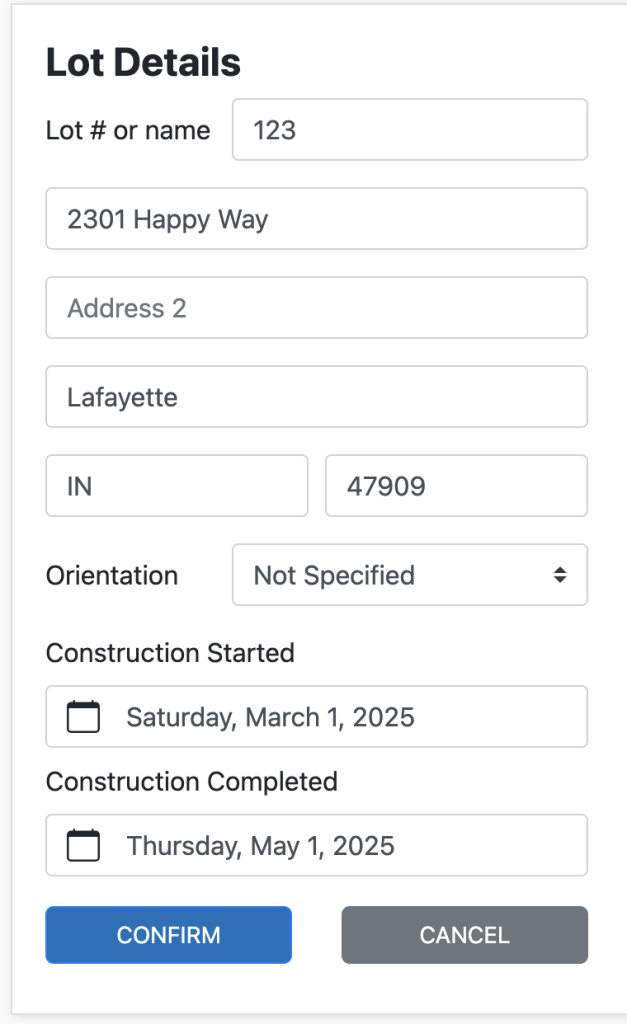
In Rheia Manage, the “Not Specified” option is now available when creating a lot.
Select this option when the value is not known and the technician who is commissioning the system will set it in the field.
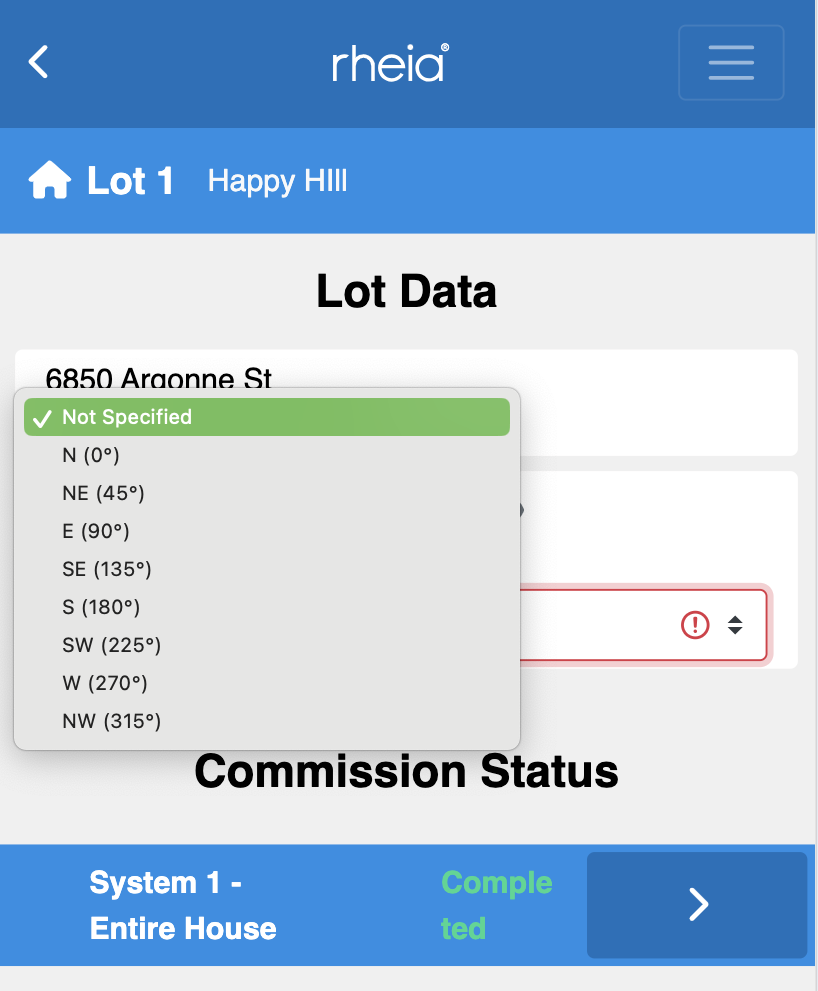
There are eight lot orientation options to choose from:
North (0°), North East (45°)
East (90°), South East (135°)
South (180°), South West (225°)
West (270°), North West (315°)
When importing a batch of lots from a CSV file, the default setting when no orientation is specified will be “Not Specified”.
Prior to this update, these lots defaulted to the North orientation.
Setting Orientation in Verify
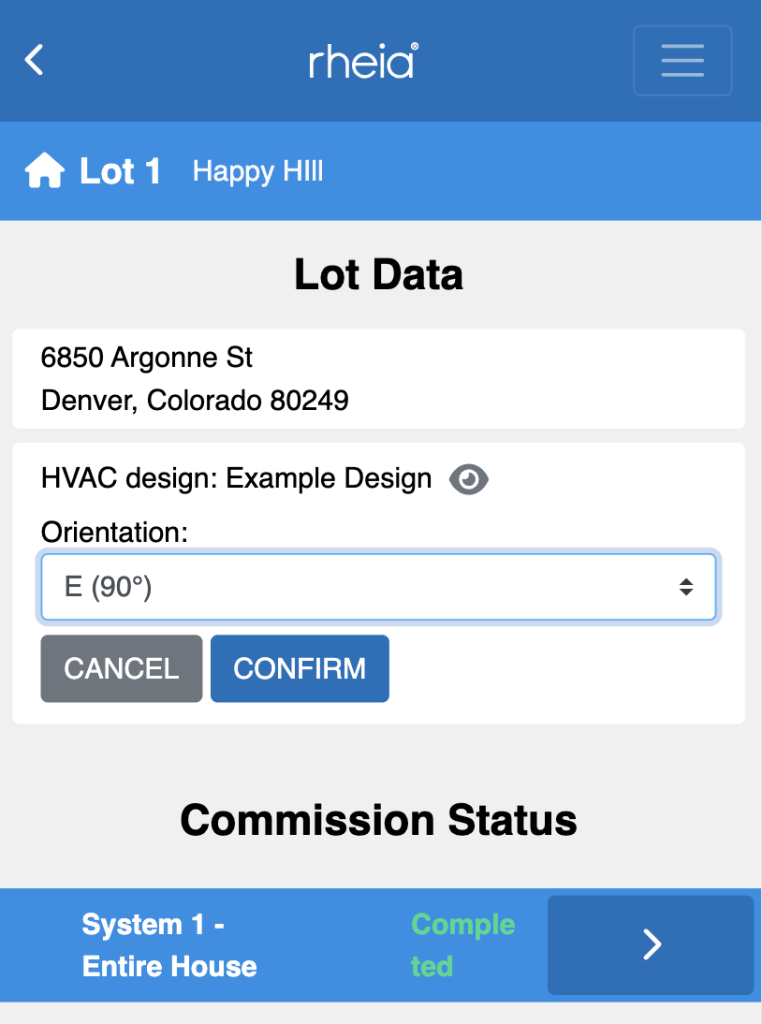
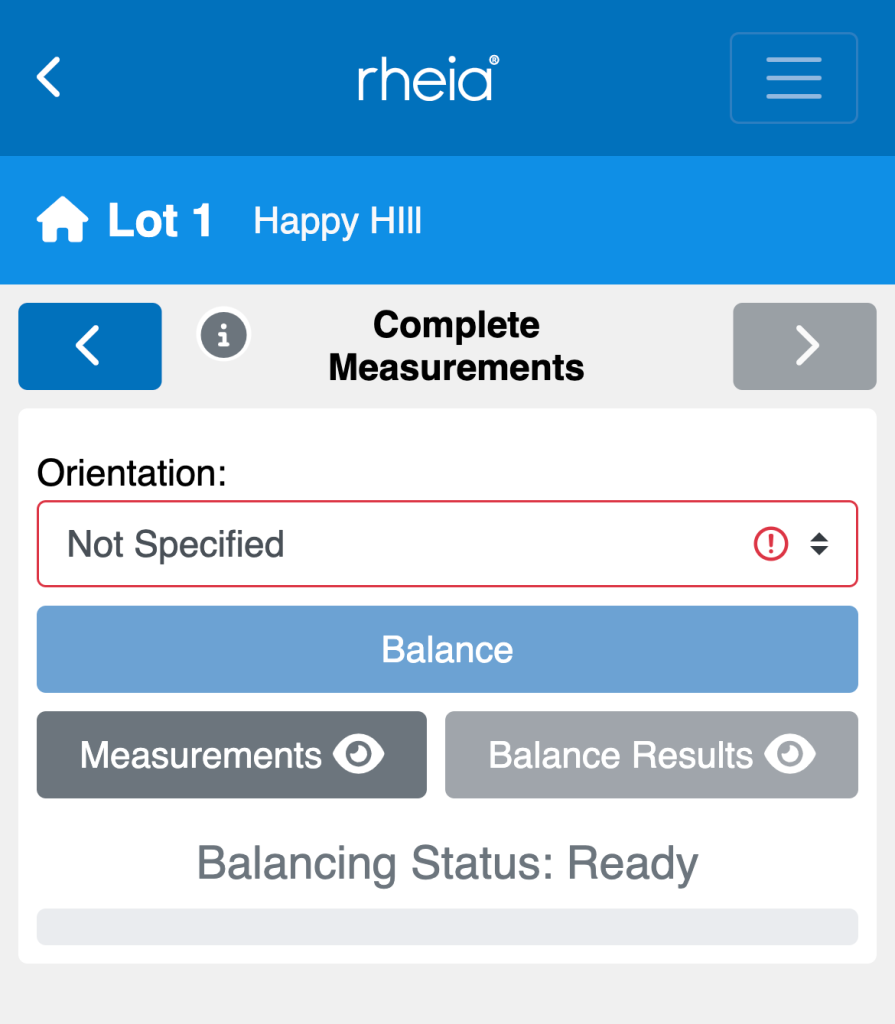
If already set in Rheia Manage, the lot orientation information will be displayed in the Orientation field in Rheia Verify.
Review the setting in the Orientation field and confirm the value is correct relative to the installed system design.
If the Lot’s orientation is incorrect or “not specified”
Click on the Orientation field and select the correct orientation from the drop down list.
Once an orientation has been selected form the drop down list, click the “CONFIRM” button under the Orientation field.
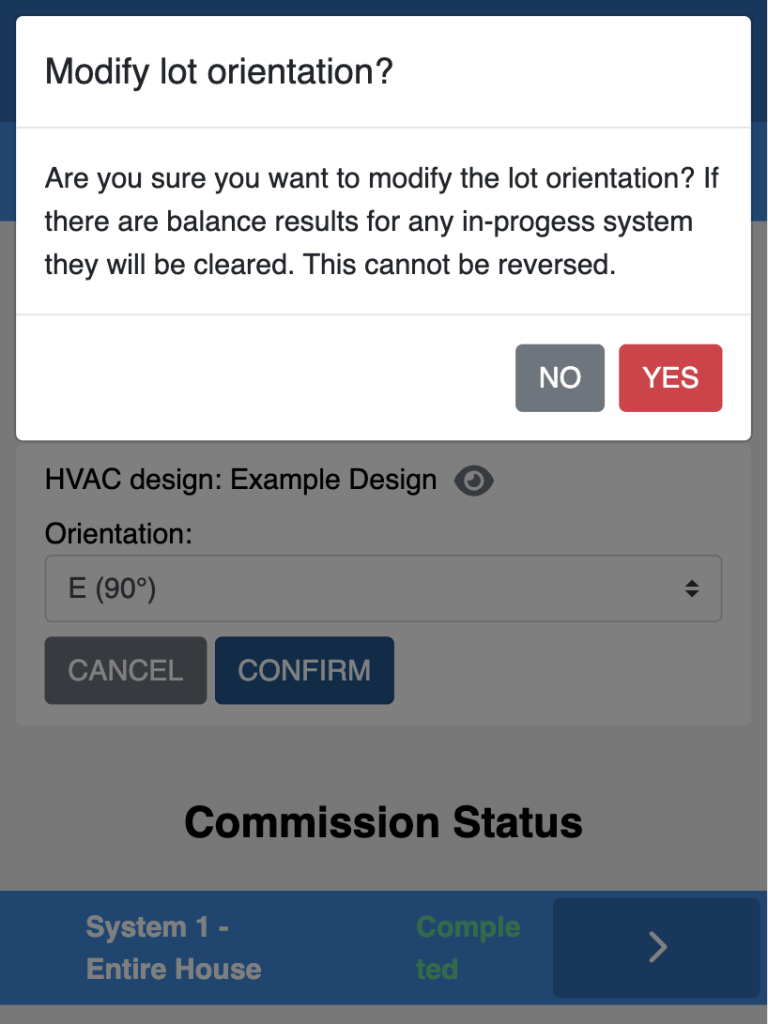
A final confirmation to modify the selected orientation will be requested.
Click “YES” to finalize the selection.
The Lot Orientation setting can be made at any time prior to the final balancing of the system. The Orientation field will be highlighted in RED until it is set.
Note that the ‘Balance’ button will be inactive until the Lot Orientation has been set.